

Step 5: Update Your Profile
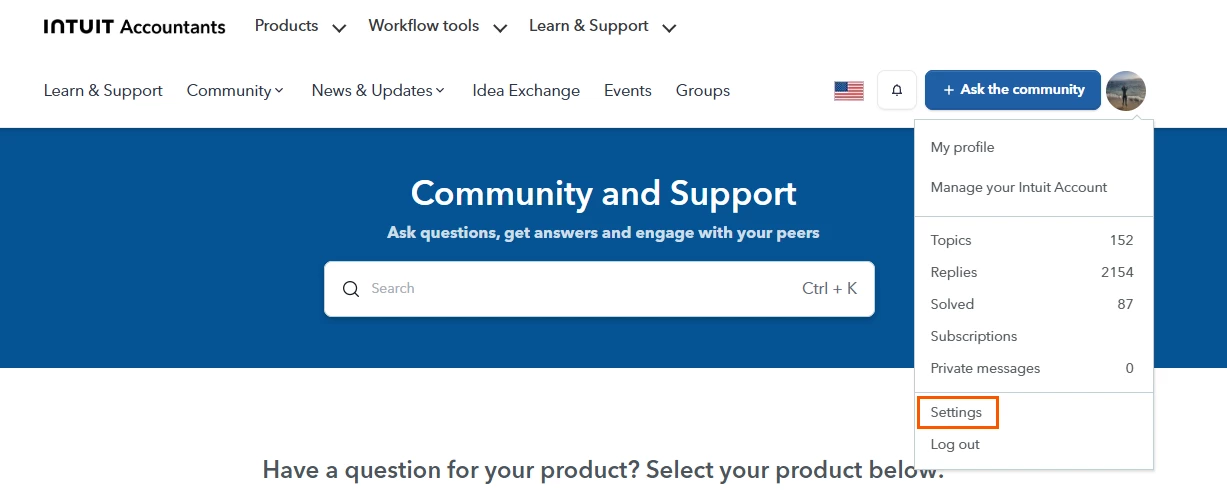
Update your profile under Settings. Right-click to open this link in a new tab and follow along with the instructions below.
Make it easier for other Community members to connect with you by keeping your profile up to date. While reviewing your profile settings, be sure to update these key fields:
A Bit About Yourself
Share a little about yourself to help other members get to know you. Where are you from? How long have you been in the industry? A few details can go a long way in building connections within the Community.
Customer Account Number (CAN)
Adding your CAN to your profile makes it easier for us to verify your information and view your history with Intuit.
Not sure where to find your Customer Account Number (CAN)?
No problem. We've gathered a few helpful articles below to guide you through the process so you can quickly find your CAN:
- How to find your Customer Account Number in Lacerte
- How to find your Customer Account Number in ProSeries
- How to find your Customer Account Number in ProConnect Tax
Tax Product Years of Experience
Showcase your expertise by updating the number of years you've used your Intuit tax product. This helps other members better understand your experience and perspective.
Save Your Changes
After updating your profile, select Save changes at the bottom of the page.
You can view your updated profile at any time by selecting your profile avatar and choosing My profile.
We look forward to learning more about you!





