

Step 3: Ask the Community
Need help from other users or have a question about your product? Ask the Community to connect with fellow customers and experts who may be able to help.
Note: You must be signed in to your account to create a post or ask a question in the Community.
1. Start a new question
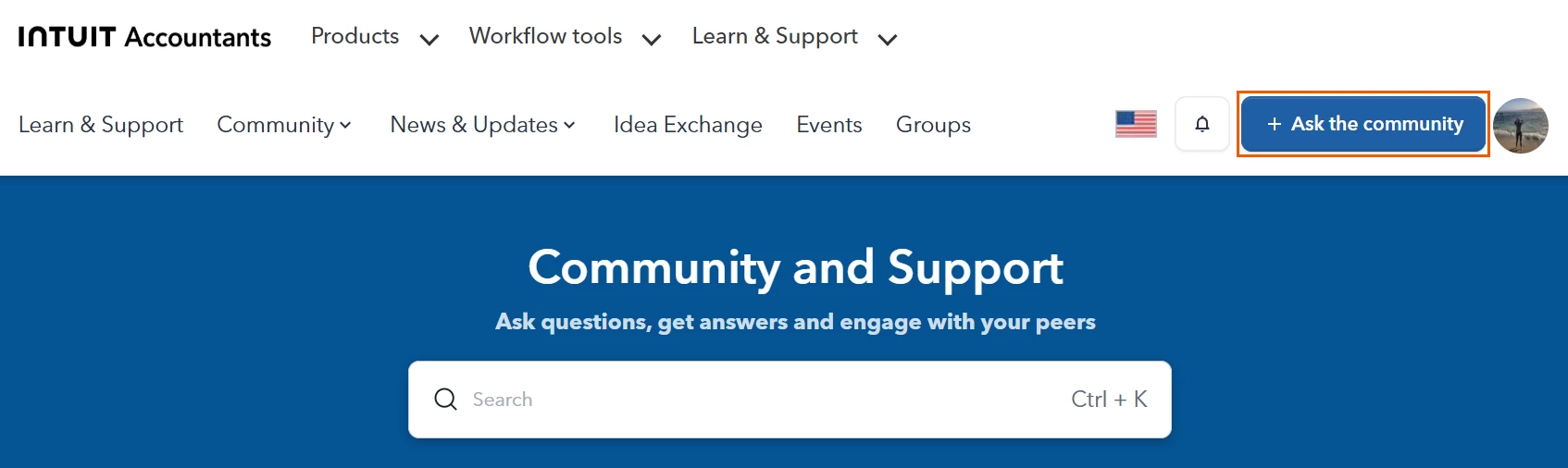
From any Community page, select + Ask the Community to create a new post.
2. Create Your Post
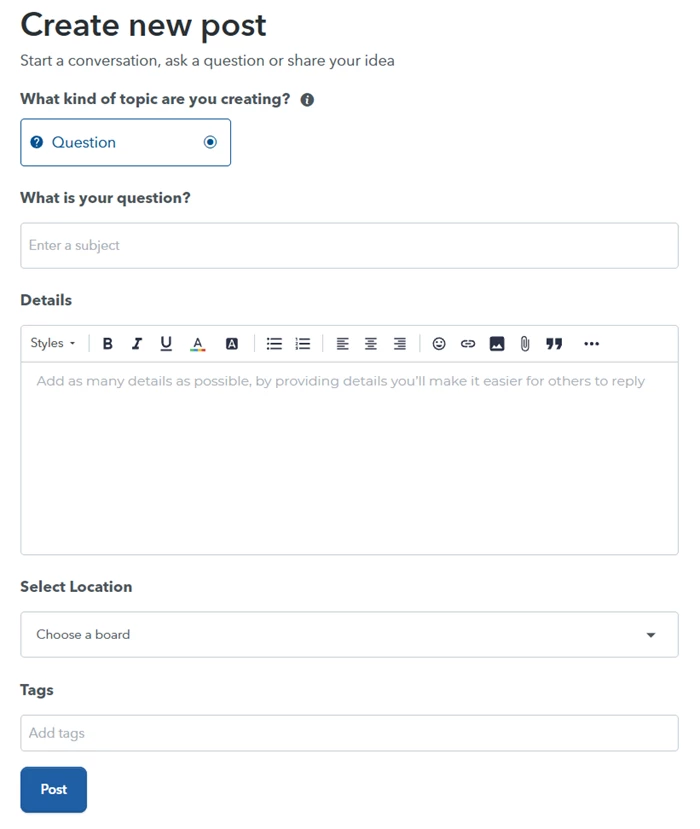
Complete the required fields in the Create a Post form:
- What is your question? Enter a clear, descriptive title.
- Details: Provide information about your question or issue.
- Location: Choose where you want your post to appear, such as a product discussion board.
- Tags: Add relevant tags to help others find your post.
3. Include Helpful Details
The more information you include, the easier it is for others to understand your question and offer helpful answers. Consider including:
- The product or area of the product you are using
- The tax year or tax module
- What you were trying to do when the issue occurred
- Any error messages you received
- Steps you have already tried
- Your state, if applicable
To add screenshots, select the Insert Image icon and upload your image(s).
When you're ready, select Post to share your question with the Community.
Tips for posting in the Community
To help you get the best answers:
- Before posting search the community to see if your question has already been answered.
- Use a clear, specific subject line for your question.
- Include as much relevant information as possible in your post.
- Keep posts focused on a single question or issue.
- Do not share sensitive information, such as Social Security numbers, taxpayer information, passwords, license numbers, or other personal data.
- If your issue is resolved, consider marking the reply that helped you as the Best answer.





