 Intuit HelpIntuit
How to password protect PDFs in Lacerte
by Intuit•29• Updated 2 days ago
Starting in tax year 2019, Lacerte added the ability to password protect PDF tax returns. Below, you'll find how to generate a password-protected PDF, how to view or change the password protection options, and what password the client uses to unlock the file.
Generate a password-protected PDF
- Select a return on your Client list.
- Press Ctrl+P on your keyboard, or go to the Print menu and select Tax Return.
- Select File (PDF), Document Management System (DMS), or SmartVault for the return type you need to print.
- Check the box labeled Password Protect PDF.
- Select OK to print the return.
View or change the password protection options
- Press Ctrl+O on your keyboard, or go to the Settings menu and select Options.
- Select the Setup tab.
- Scroll down to the PDF Password Options section.
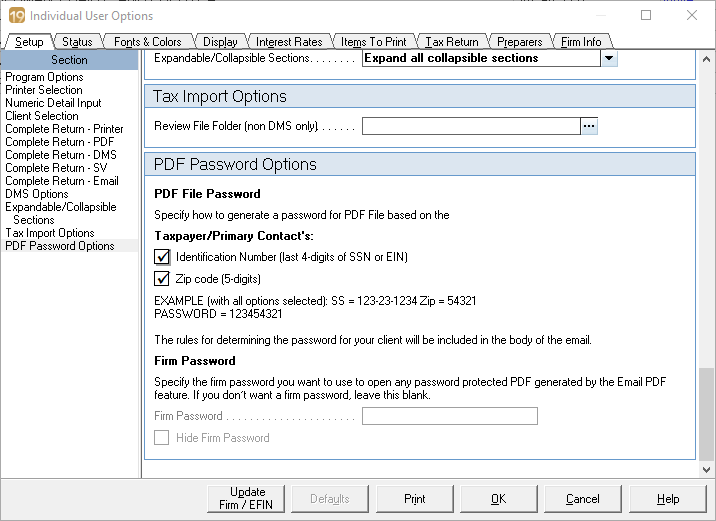
- Check the box next to Identification number or ZIP code, or check both.
- Lacerte will generate a password based on the component(s) you choose here.
- Select OK to save your changes.
What password does the client use to unlock the file?
The default password is a combination of the last four digits of the client's SSN or EIN, plus their five-digit ZIP code.
More like this
